Showing posts with label microsoft. Show all posts

Wednesday, January 1, 2025

Different Ways to Take a Screenshot in Windows 10


Quick Preview to Take Screenshot on Windows 10:-

  1. Use the CTRL + PRT SC Keys to take a quick screenshot.
  2. Use ALT + PRT SC Keys to take a Screenshot of any application window.
  3. Use Windows + Shift + S Keys to access the Xbox Game Bar.
  4. Use Snip & Sketch Application as well to take screenshot 
  1. Taking Screenshots has become one of the necessary components of our daily life. Whatever device, we are using, we face the need to take screenshots there. Also no doubt, the Screenshots help to describe any action more clearly than any other means. Keep in mind that, Windows comes up with different Methods to Take Windows Screenshots.

In earlier times, there was only one way to Capture Screenshots on Windows. That is the using Windows Keyboard Shortcuts. But as the demand is increasing, there are more new ways introduced to Grab Screenshot on Windows 10. We can enlist 7 different methods to Get the Windows Screenshot.

This article is going to be a detailed guideline about the Ways to Take Screenshots in the Windows 10 operating system.
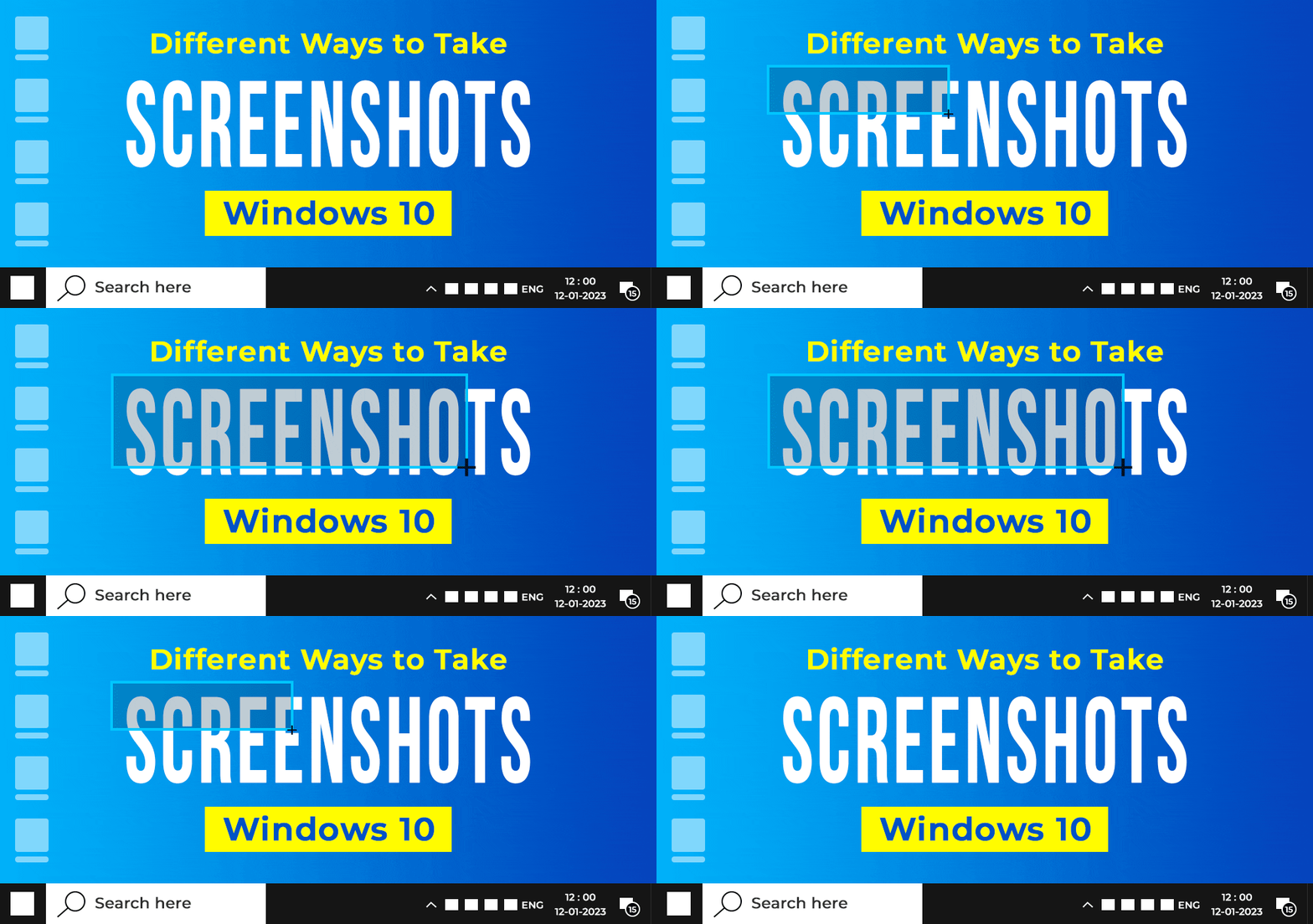
How to Take Screenshots in Windows 10

How to Take Screenshots in Windows 10? [7 Different Methods]

Methods to Take Screenshots on Windows 10

To Take Screenshots of the Windows Screen, the following methods can be used. In this guideline, we will start with the PRT SC Key execution.

Method 1: Take Screenshots on Windows using the Print Screen Button to Capture Full Screen

Step 1: When you have decided what you want to capture as a screenshot, tap on the PrtSc key on your keyboard immediately. 
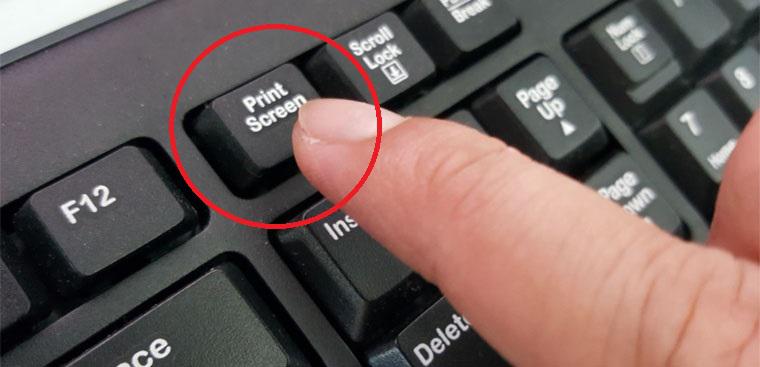
Use the Print Screen Button to Capture Full Screen


Step 2: The previous step will automatically get a screenshot of the screen and store it in the clipboard of your Windows PC. Since it will not save directly as an image, you can open another editor app, like Paint.
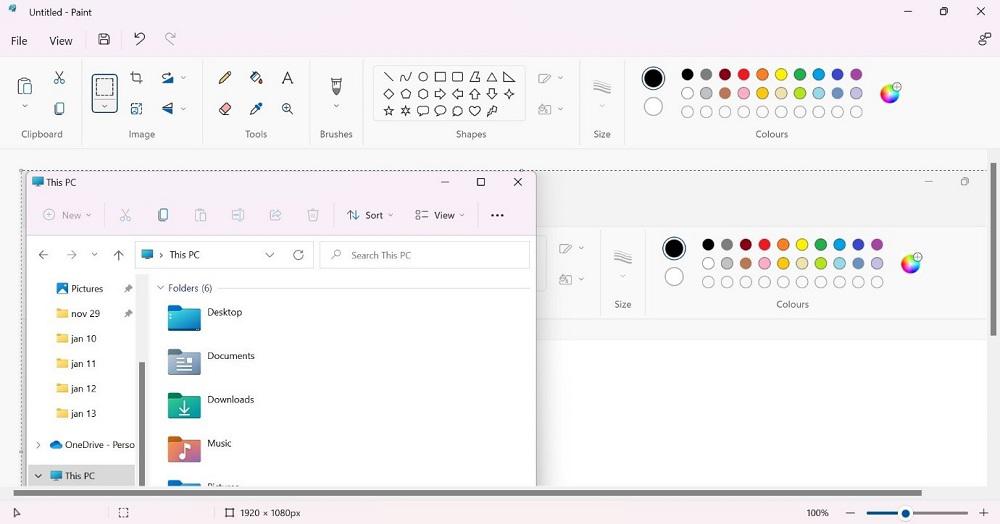
Using Paint to Save the Screenshot


Step 3: On the clear white canvas of the Paint app, put the cursor on the page and press Ctrl + V keys. This will drop the image from the clipboard onto the page.

Step 4: Click on File > Save As. Name the screenshot and choose the location to save it in. Then, press the Save button.

Method 2: Take Screenshots on Windows of a Specific Window

Step 1: When you have many windows open on your device, press the Alt + Win + PrtSc keys together.

Step 2: The screenshot will be stored immediately in the folder named Videos > Captures once you press the Alt + Win + PrtSc keys.

Grab the Screenshot of a Specific Window


Method 3: Take Screenshots on Windows Whole Screen

If you want to take a quick and accurate screenshot on your screen and avoid saving it into the clipboard, you can press the Windows and PrtScn keys together. This will bring up the thumbnail on the screen at the bottom-left side when the screenshot capture step is done. 

You will find the screenshot in your device’s Pictures/Screenshots folder, accessible through the File Manager

Take a Screen Clip of the Whole Screen


Method 4: Take Screenshots on Windows using the Snipping Tool

Step 1: When you need to screenshot something on the screen, tap on the Windows button (⊞ ) from the taskbar below. 

Step 2: Type in the Snipping tool in the search field. Click on the first app option that comes in the result to open it. 
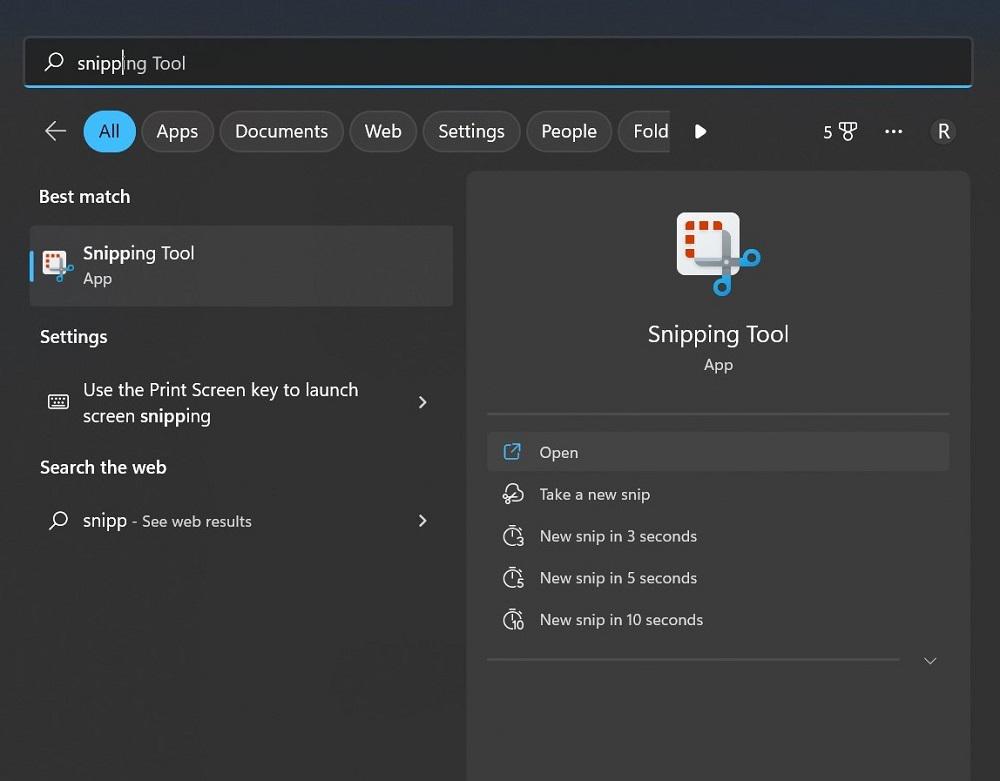
Grab a Screenshot using the Snipping Tool


Step 3: You will see multiple options in the app when it opens on your Windows 10 PC. These include:

  • Mode – This particular option deals with the style of screenshot you choose. Options include the Rectangular Snip, a default option, Free-Form Snip, Full-Screen Snip, or Windows Snip. 
  • Options – This element allows you to switch between the options for the Snipping Tool. 
  • Delay – This feature allows users to delay the screen capture for 1-5 seconds. 
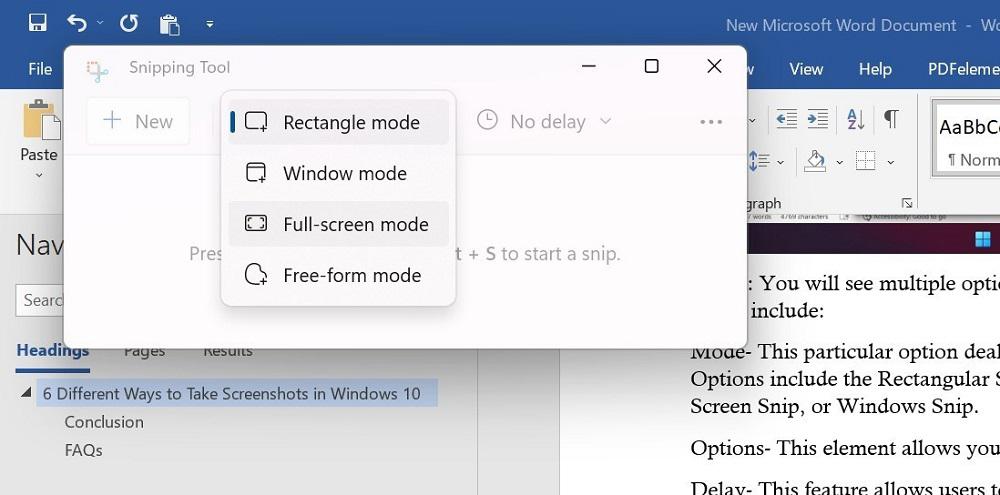
Modes of snipping tool

Step 4: After setting up the features for the Snipping Tool to take the screenshot, press the New Option. The screen will appear with a white overlay showcasing the uncaptured area. 

Step 5: The screenshot will appear in the Spinning Tool after you capture one. 

Step 6: Tap on the File tab and choose the “Save As” option to move the screenshot to your preferred location on the hard drive. The app does not automatically save the screenshots anywhere. 

Method 5: Take Screenshots on Windows using the Snip & Sketch Tool

Step 1: Go to the window or page you will capture. Press Win + Shift + S keyboard shortcut or click the Start menu from the taskbar > type Snip & Sketch > tap the option.

Step 2: After the tool opens, you will see many options as icons, like:

  • Freeform– For drawing a custom shape that you create to screenshot. 
  • Rectangle– Capture a screenshot of the screen within a rectangle shape you expand or decrease with your mouse. 
  • Full-screen Snip– The screenshot of the entire PC screen or the screens of multiple monitors (if you are using many of them). 
  • Window Snip– This mode captures only the screenshot of the window you are currently using. 
    If you want to change your choice, tap on X to close the tool. 

Step 3: After capturing the screenshot, the image will be saved in the clipboard. Click on it from the notification that pops up on your screen. Tap on it for markup/file sharing. 

Step 4: If the popup notification does not appear, go to the Notifications bar at the right part of the screen to access the Snip & Sketch tool. 

Step 5: Save the file in the Paint app to cut the screen size. Then save the file. 

Method 6: Take Screenshots on Windows using the Game Bar 

Step 1: For this app to work for screenshotting, you have to activate the Game Bar feature on your PC first.  For that, go to Settings > Gaming. Then, activate the slider for the Game Bar operation in the next window.
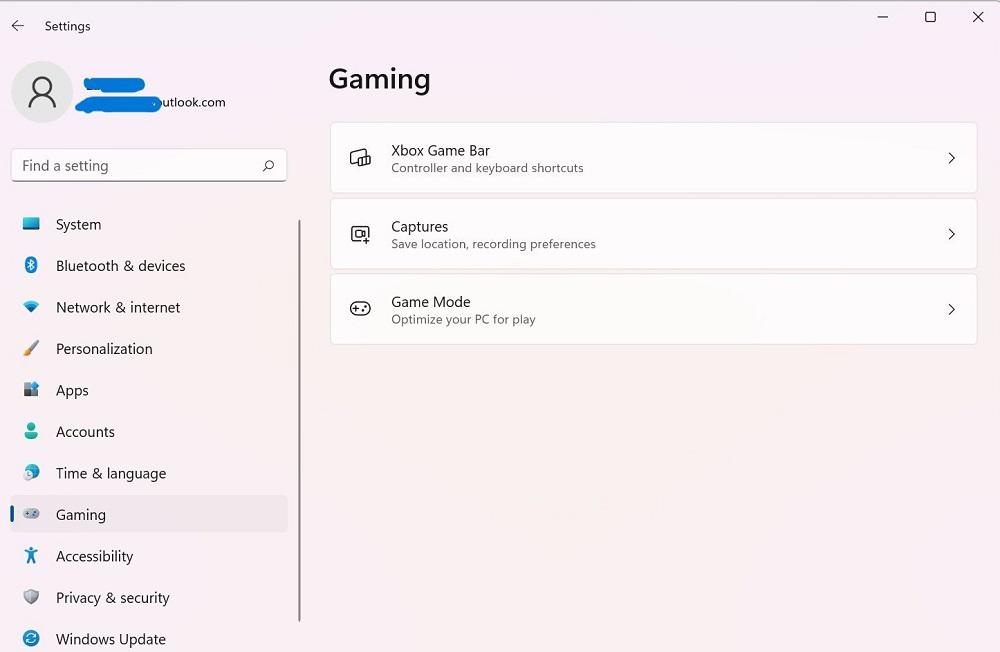
Go to Settings in your desktop and tap on the XBox Game Bar button

Step 2: On your PC, tap the Win + G keys to access the Game Bar. 

Step 3: Then tap on the Capture option. Or, press Win + Alt + PrtSc

Step 4: The full-screen screenshot of the window you capture automatically saves into Videos > Captures. Click on it from File Manager to find and use it later. 

Method 7: Take Screenshots on Windows using the Alt + Prt Sc

Step 1: Go to the desired screen of which you’re looking to take the screenshot and hit Alt + Prt Sc (Print screen) at the same time.

Step 2: You will be required to select the desired area in which you want to take the screenshot, click, the and save it as required.

Step 3: An image will be copied and can be pasted simply on the Paint app.
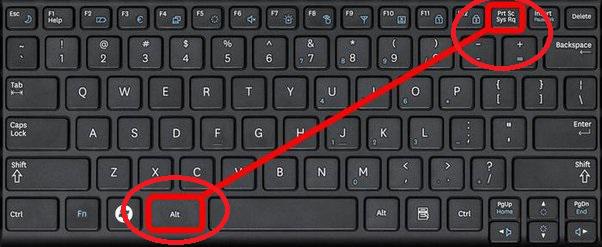
Use the Alt + Prt Sc to Capture the Screen

Taking a Screenshot on PC isn’t a tough task, even if you aren’t a tech-savvy person. All you need to do is follow this step-by-step Guide to Take Screenshots of anything on your PC. Use the simple PrtSc key for this process or different tools available on the device. Follow the steps correctly to avoid errors with this function on a Windows PC.


Tuesday, November 26, 2024

Windows Keys

 ● Windows key → Open or close Start Menu.

● Windows key + A → Open Action center.
● Windows key + C → Open Cortana in listening mode.
● Windows key + D → Display or hide the desktop.
● Windows key + E → Open File Explorer.
● Windows key + G → Open Game bar when a game is open.
● Windows key + H → Open the Share charm.
● Windows key + I → Open Settings.
● Windows key + K → Open the Connect quick action.
● Windows key + L → Lock your PC or switch accounts.
● Windows key + M → Minimize all windows.
● Windows key + R → Open Run dialog box.
● Windows key + S → Open Search.
● Windows key + U → Open Ease of Access Center.
● Windows key + X → Open Quick Link menu.
● Windows key + Number → Open the app pinned to the taskbar in the position indicated by the number.
● Windows key + Left arrow key → Snap app windows left.
● Windows key + Right arrow key → Snap app windows right.
● Windows key + Up arrow key → Maximize app windows.
● Windows key + Down arrow key → Minimize app windows.
● Windows key + Comma → Temporarily peek at the desktop.
● Windows key + Ctrl + D → Add a virtual desktop.
● Windows key + Ctrl + Left or Right arrow → Switch between virtual desktops.
● Windows key + Ctrl + F4 → Close current virtual desktop.
● Windows key + Enter → Open Narrator.
● Windows key + Home → Minimize all but the active desktop window (restores all windows on second stroke).
● Windows key + PrtScn → Capture a screenshot and save in Screenshots folder.
● Windows key + Shift + Up arrow → Stretch the desktop window to the top and bottom of the screen.
● Windows key + Tab → Open Task view.
● Windows key + "+" key → Zoom in using the magnifier.
● Windows key + "-" key → Zoom out using the magnifier.
● Ctrl + Shift + Esc → Open Task Manager.
● Alt + Tab → Switch between open apps.
● Alt + Left arrow key → Go back.
● Alt + Right arrow key → Go forward.
● Alt + Page Up → Move up one screen.
● Alt + Page down → Move down one screen.
● Ctrl + Alt +Tab → View open apps.
● Ctrl + C → Copy selected items to clipboard.
● Ctrl + X → Cut selected items.
● Ctrl + V → Paste content from clipboard.
● Ctrl + A → Select all content.
● Ctrl + Z → Undo an action.
● Ctrl + Y → Redo an action.
● Ctrl + D → Delete the selected item and move it to the Recycle Bin.
● Ctrl + Esc → Open the Start Menu.
● Ctrl + Shift → Switch the keyboard layout.
● Ctrl + Shift + Esc → Open Task Manager.
● Ctrl + F4 → Close the active window.


20 Microsoft Word Shortcut Keys


● Ctrl+W → Close the active window / document.
● Ctrl+Z → Undo an action.
● Ctrl+Y → Redo the last action or repeat an action.
● Ctrl+S → Save a document.
● Ctrl+P → Print a document.
● Ctrl+K → Insert a hyperlink.
● Alt+Left → Arrow Go back one page.
● Alt+Right → Arrow Go forward one page.
● Ctrl+C → Copy selected text or graphics to the Office Clipboard.
● Ctrl+V → Paste the most recent addition to the Office Clipboard.
● Ctrl+Shift+A → Format all letters as capitals.
● Ctrl+B → Applies or removes bold formatting.
● Ctrl+I → Applies or removes italic formatting.
● Ctrl+= → Apply subscript formatting (automatic spacing).
● Alt, F, A → Save As.
● Alt, S, T, I → Insert Table of Contents.
● Alt, S, T, R → Remove Table of Contents.
● Alt, W, F → Full Screen Reading – View > Document Views > Full Screen Reading.
● Alt, W, R → Ruler. View > Show/Hide > Ruler.
● Alt, F, X → Exit Word.

Monday, October 28, 2013

New Features In Windows 8.1

Microsoft has finally released Windows 8.1 to the public and it’s available as a free update to all existing Windows 8 users. If you have upgraded to Windows 8.1 or planning to upgrade to Windows 8.1 in near feature, check out the 50 best features introduced with Windows 8.1.

The Start button: Microsoft has restored the Start button in Windows 8 to help users quickly switch to the Start screen. Right-click on the Start button to see Power User Menu (Windows + X menu) containing shut down, restart and a couple of other options.
Set desktop background as Start screen background: 8.1 comes with an option that lets you automatically set desktop background picture as Start screen background. When you change the desktop background, Windows automatically applies the new picture to the Start screen background.
Use lock screen as picture frame: The lock screen can now be used as a picture frame to showcase your pictures from local drives as well as your SkyDrive.
Small tiles on Start screen: Start screen now lets you have tiny app tiles.
50 New features in Windows 8.1 Picture4
Extra large tiles on Start screen: Some tiles on the Start screen such as Desktop and Weather tiles support extra large size.
Option to disable Charms: An option is present under Taskbar and navigation settings to disable the Charms that appear when you move the mouse cursor to the upper or lower right-corner of the screen.
Shutdown and restart options in Win + X menu: In Windows 8.1, you don’t need to open the Settings charm to access shut down and restart options. Simply press Windows + X keys or right-click on the Start button to to see shutdown and restart options.
New PC Settings: The PC Settings or the modern Control Panel has been updated with plenty of new settings. Most of the settings that are present under the old Control Panel are now available in PC Settings as well.
100 New Features in Windows 8 Picture1
Internet Explorer 11: This update ships with the newest version of Internet Explorer.
Motion picture as Start screen background: The Start screen now supports and comes with a motion picture as background by default.
Uninstall apps from multiple PCs: If you’re using the same Microsoft account on all of your PCs, you can now uninstall apps from all of your PC from at once.
New SkyDrive app: The updated SkyDrive app lets you easily browse and manage files in your SkyDrive account.
Slide to shut down: Slide to shut down is one of the hidden features present in Windows 8.1. As the name suggests, you can use this feature to shut down your PC with a touch gesture or a simple drag. Follow our how to use slide to shut down feature for detailed instructions on using the feature.


Resize apps: You can now resize apps to nearly infinite sizes, just like desktop programs.
All apps on Start: Simply click the Down arrow button or swipe up from the bottom of the screen to see all installed apps.
Highlights newly installed apps: The Start screen now highlights newly installed apps to help you easily access them.
Boot to desktop: When this option is enabled, Windows 8.1 boots directly to the desktop, skipping the Start screen.
Start screen sync: This feature lets you sync Start screen layout and settings with other Windows 8 PCs signed-in using the same Microsoft account.
Download Manager in IE11 Metro: The modern version of Internet Explorer 11 includes a download manager which can be accessed using Control + J hotkey.
50 New features in Windows 8.1 Picture9
New Start screen patterns: Windows 8.1 includes new Start screen patters and backgrounds, including animated ones.
Native support for touchpad gestures: Unlike Windows 8, Windows 8.1 doesn’t require you install drivers to enable supported touchpad gestures. All touchpad gestures are supported out of the box.
Assigned access: Available in Windows 8.1 RT, Windows 8.1 Pro and Windows 8.1 Enterprise, it lets you enable a single Windows Store app experience on your PC or tablet.
Sync tabs in IE11: Internet Explorer 11 supports syncing tabs across multiple Windows 8.1 PCs. You need to sign-in with your Microsoft account to use this feature.
Updated Windows Store: The updated Windows Store is now has close to 1,00,000 apps.
50 New features in Windows 8.1 Picture5
Network behavior monitoring: Windows Defender now comes with network behavior monitoring feature to provide better protection to your PC.
Internet sharing options: You can easily share your mobile broadband Internet connection with other people. They will need the password and network name to connect.
Reading list feature: Snap view now supports up to three apps: You can now place up to three modern apps side-by-side on each screen.
Multi-monitor support for apps: Modern apps now fully support multi-monitor setup.
Automatic updates of Modern apps: Windows 8.1 automatically checks and updates all modern apps installed from the Store and requires no manual intervention.
Outlook app for Windows RT: This update brings Outlook 2013 RT app to Windows RT.
Multi-instance support: You can now have multiple instances of a Modern app.
Powerful search: In addition to local files, the Search in Windows 8 brings results from your SkyDrive as well as Bing.
Alarms app: Windows 8.1 ships with a beautiful Alarm app.
50 New features in Windows 8.1
Uninstall multiple apps at once: You can now select multiple apps at once on the Start screen and uninstall all of them at once.
Calculator app: In addition to the Calculator program, Windows 8.1 includes a Modern version of Calculator app as well.
Scan app: A free app for basic scanning of documents and pictures, requires a scanner.
Food and Drink app: A free app to search for food and drink. It also lets you manage your recipe, plan your meals, and shopping list.
Help & Tips app: This app provides help and tips to use Windows 8.1 and its features.
Reading List: Available only for the Modern UI version of Internet Explorer, this feature is similar to Read Later apps. Useful for tablet users who use Modern UI Internet Explorer to browse the web.
Sound Recorder: As the name suggests, a handy sound recording app for Windows 8.1
Health and Fitness: One of the most useful apps included in Windows 8.1. In addition to health and fitness tips, it also allows you health and exercise trackers.
50 New features in Windows 8.1 Picture7
Use camera from lock screen: Lets you access camera right from lock screen even if your PC is locked.
Set removable device as default save location: The feature lets you configure Windows 8.1 always save files to a removable drive by default.
View SkyDrive storage space: You no longer need to open up your SkyDrive account page to view used and available space in your SkyDrive account as you can view the same right in PC Settings.
50 New features in Windows 8.1 Picture3
Save files to SkyDrive account by default: When this feature is enabled, Windows 8.1 lets you save files to your SkyDrive account by default, rather than Documents folder.
Quiet hours: You can use this feature to stop app notification during certain hours of the day.