Showing posts with label Software. Show all posts

Tuesday, April 23, 2013

Best Data Backup Free Software For Windows


These days keeping backup of the data is really important as the data consist of very important things related to our life. In case the data is deleted due to any reason then it can’t be recovered unless you’ve kept a backup. For your Windows PC or laptop there are lots of software available which can keep the backup of all your data. These software keep the data safe and secure and in situations like you’ve lost your data then these software allow restoring that data back again.

There are lots of software available which you can try out but when you look for best ones then I’m sure that you’ll get links to paid software. If you don’t want to pay for the backup software then I’m here with list of best data backup free software for Windows.

GFI Backup

This free backup software is the best one and you’ll find all the require tools right there within the UI. You can take the backup to the FTP or external drive or on your PC’s hard drive. The Backups can be scheduled easily and the UI is very simple and impressive.

EASEUS Todo Backup

Another best free backup software for Windows as it allows lots of options related to backup. The software also provides tool for disk partition.
The UI is good and it supports the 64bit architecture as well. It has a good feature that it creates backup instantly in case of any disaster and restore it quick.

Cobian Backup

This best backup free software for Windows allows backing up of data to FTP, external drive or to the network drive. This software also allows encryption of the data you did backup. The UI is simple but not impressive to me. Still you can try out as it got good features.

Backup Maker

This software has two modes, standard and expert mode. If you’re a new user and don’t know anything about what backup is all about then try the standard mode and if you’re an expert then try the expert mode.
The UI is extremely simple and it has got lots of features that are must to have in any backup software. In short, you’ll feel like you’ve purchased this software.

Comodo Backup

This software is very much popular due to its simple UI and better features than all other backup softwares. It allows FTP backup, external network or drive backup and it also provides e-mail notifications. You can create unlimited size of backup with this software as it doesn’t have any limitation.

DeltaCopy

Free software developed under open source license to let users create useful backup of their valuable data. You can keep the same data on multiple sources using it and also schedule backups.

Monday, March 4, 2013

Compress Video taken by Camera into small size with VirtualDub


Many of us own digital cameras that can take pictures as well as videos. The problem with the video taken is that a 10 minute video can take about 1GB space on your computer ! We need to compress the video by lowering the bitrate while using a suitable codec to compress and decompress the video.
In this tutorial we will use VirtualDub which  is an extremely efficient video capture and processing program. It can be used to compress an MJPEG AVI file (digital camera’s usually save in this format) to Divx/Xvid AVI video with MP3 audio.

How to compress AVI Video using VirtualDub – Guide

First we need to download VirtualDub. Extract the zip file and open the VirtualDub application.
Choose File > Open Video File (Ctrl+O)
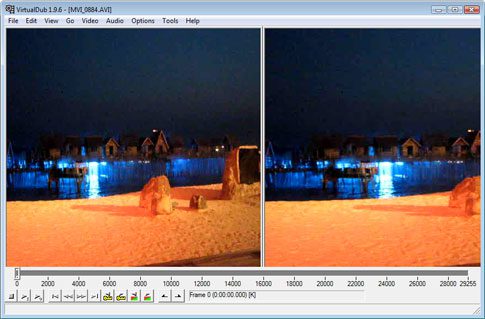
Select the file you wish to open. You should see a screen similar to the one below.
virtualdub-file-open
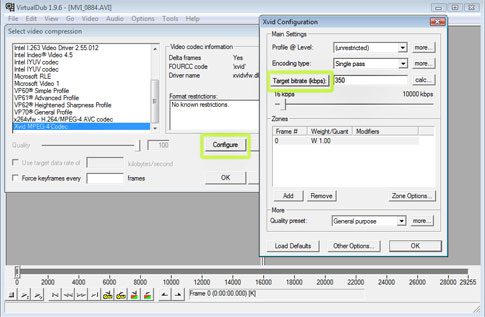
Now from the Video menu choose Compression (Ctrl+P). We will be using the Xvid MPEG-4 codec for compressing this file (Divx is also a good choice but Xvid is opensource). Incase you do not see it, download Xvid.
virtualdub-video-options
Choose Xvid MPEG-4 Codec and click Configure. Now click on target quatizer, the button will change to Target bitrate. Enter 300-350, which is a good rate for videos to be shared on the web. You can enter a higher rate if you like. Click Ok on both the boxes to get back to the main screen.
Now go to the Audio menu and choose Full Processing Mode.
Again go to the Audio menu and choose Compression. Choose MPEG  Layer-3, check Show all Formats. Choose a bitrate for the audio, 128kBit/s should be enough.
Last but not least go to File > Save as AVI (F7). Choose a location and name to save the file.

VirtualDub will now compress the file. In my case, the 800MB file was compressed to 80MB while loosing a little quality. A small price to pay for a huge reduction in file size. Play with the bitrate setting to your liking.
Download VirtualDub